Would you like to give a gift that nobody else has? A custom wood engraving turns an ordinary chopping board, notebook or decoration into an original piece with a story. At AMADEA you design it yourself – in a simple online designer, step by step, with no graphic design skills needed. This guide takes you through the whole process, from choosing a product to placing your order.
Before you start, decide what you would like engraved on the wood – a name, a date, a short message, a quote, a company logo or a simple motif (a silhouette, a heart, an initial). If you want to use your own image, have a JPG, PNG, SVG or WebP file ready in the best possible quality. The designer runs directly in your browser, nothing needs to be installed and all features, including downloading your design, are free.
How the online engraving designer works
You will find the custom engraving designer on the AMADEA website in the Create Your Own Product section. It works in three simple steps – choosing a product, designing the engraving and exporting your order. The canvas shows a live preview of how the finished engraving will look on the wood, so you can calmly try out different variations before you decide.
The advantage of the designer is that it works with real photos of products from our range. So you will see the engraving directly on a wooden board, a wooden notebook or a wooden clock – not on some abstract grey background. You can download your design as an image, save it, share it with your family and come back to it later.

Step by step: how to design your own engraving
Step 1 – Choose a wooden product
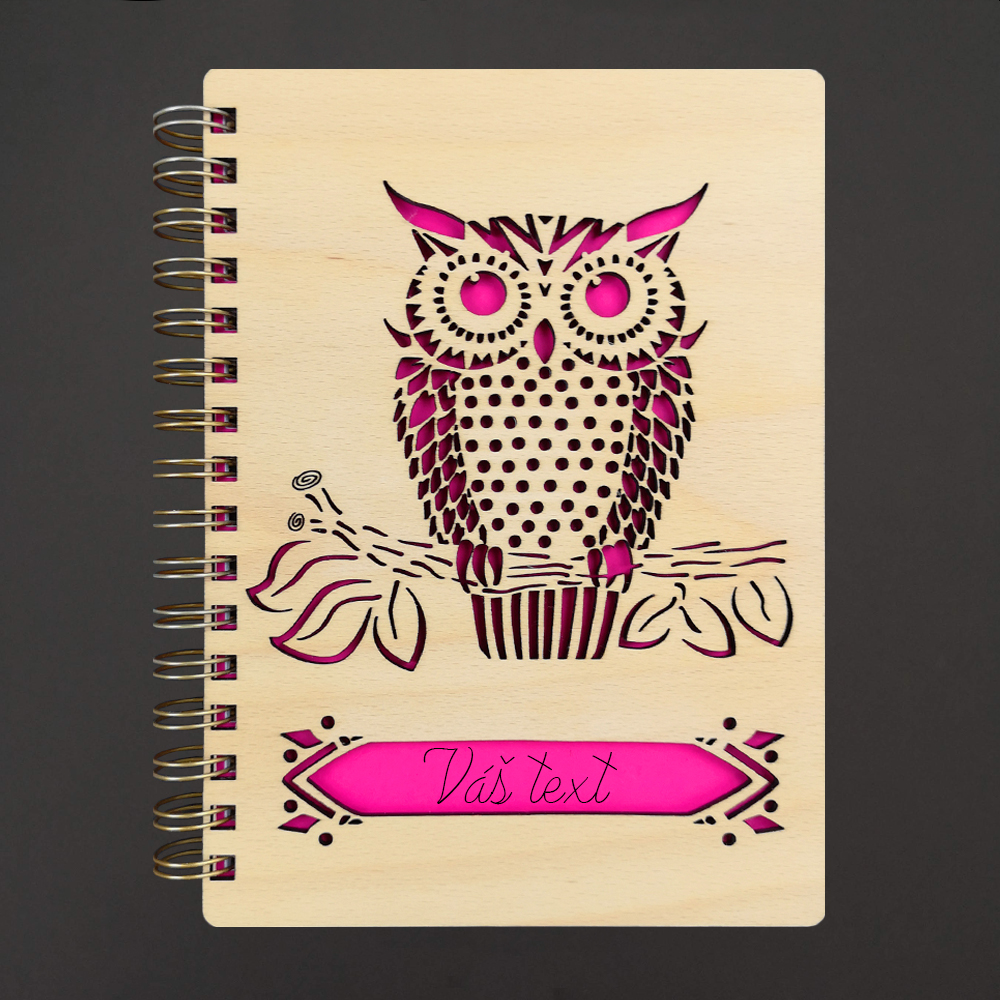
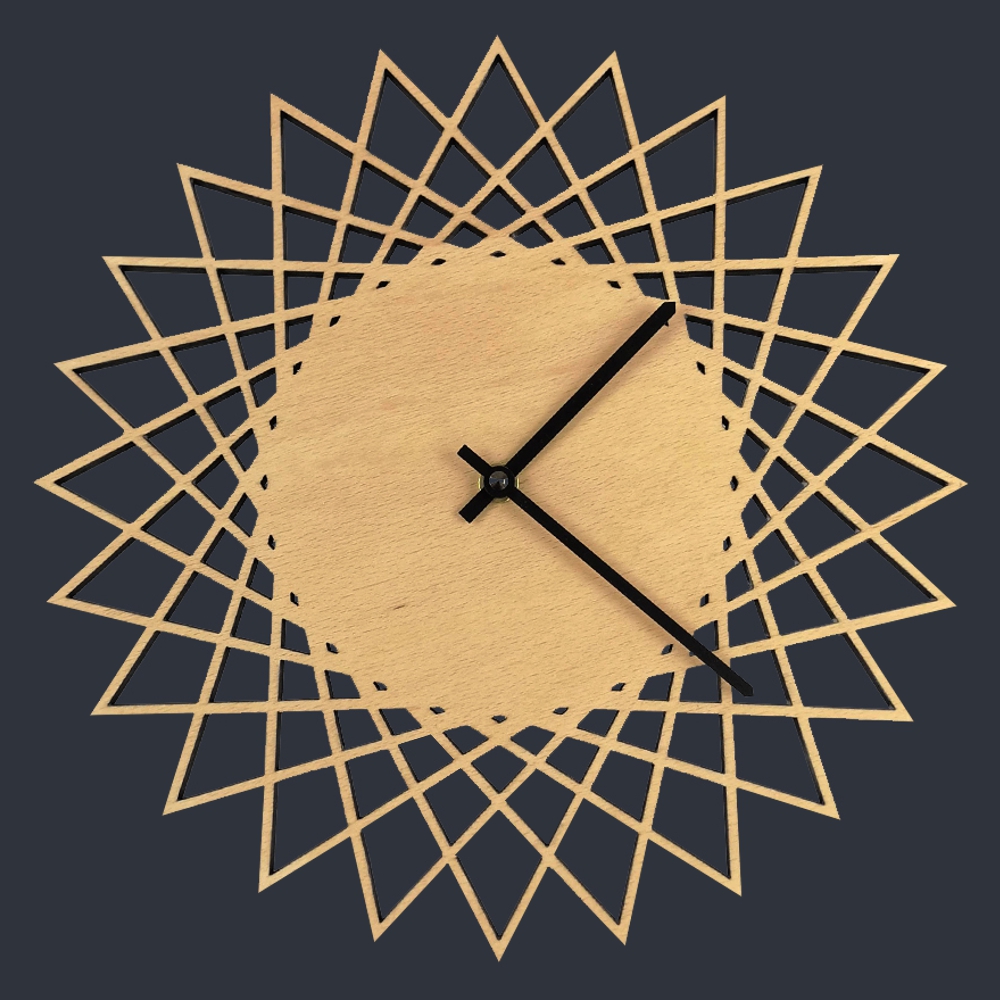
In the first panel of the designer you will see an overview of products that can be engraved. They include wooden boards of various shapes (rectangle, oval, guitar, violin, heart), serving trays, boxes, clocks, notebooks, money boxes, bowls and small decorations such as a four-leaf clover or a heart within a heart. Click the product that appeals to you – the card will be highlighted with a green frame and a tick, and a "Continue to Designer" button will appear at the bottom.
Think not only about the motif itself, but also about who the gift is for and for what occasion. For a wedding, a large serving board with the newlyweds' names and the date works well; for a musician's birthday, a board shaped like a guitar or violin; for dad, a money box with a monogram; for grandma, a wooden notebook with a dedication.
💡 Tip: If you are not sure which product to choose, browse the range directly in the shop in the Gifts with Your Design category. Each product shows its dimensions, so you will get a better idea of how large an area you will be designing the engraving for.
Step 2 – Add text and choose a font
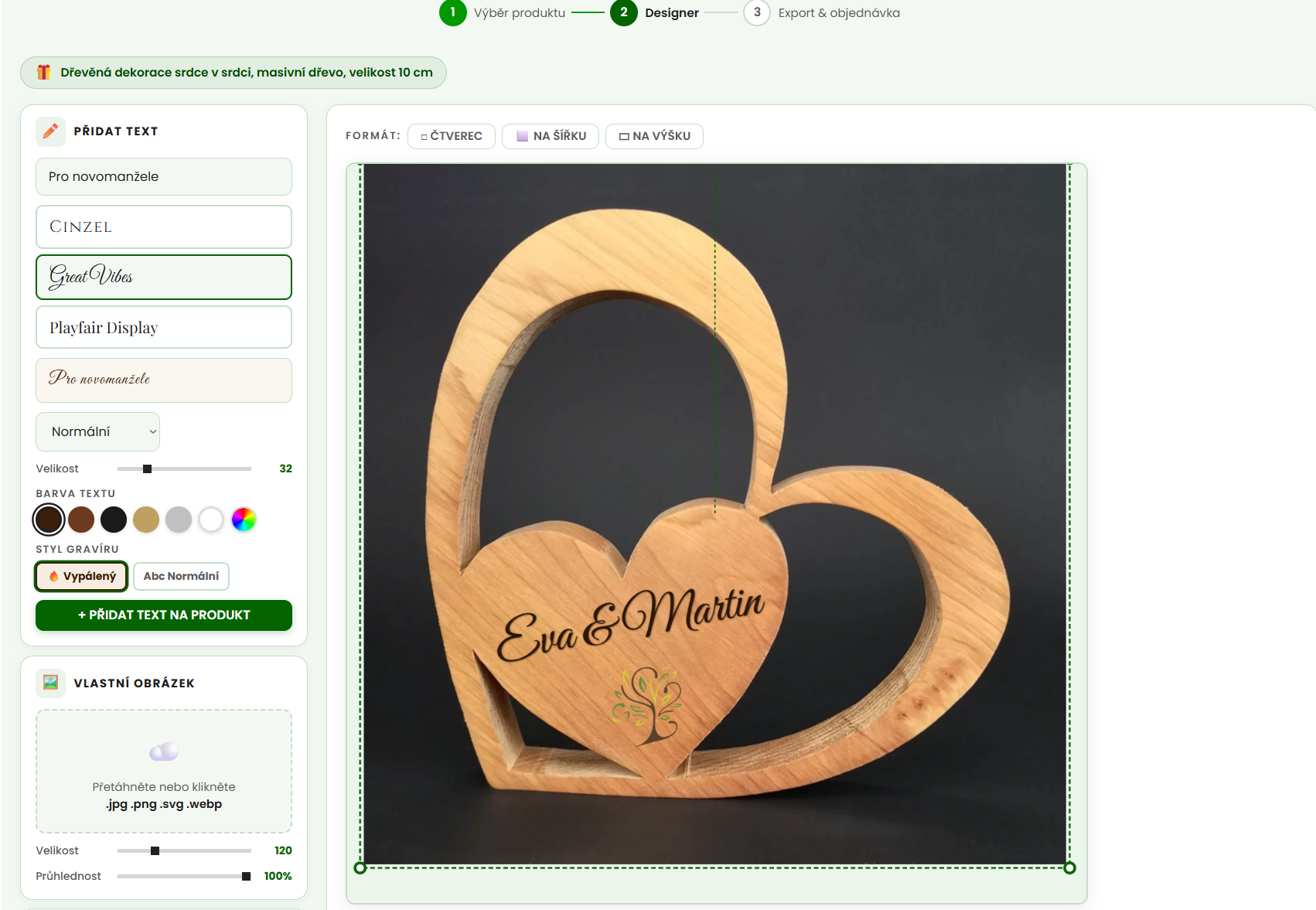
After clicking "Continue to Designer", the canvas switches to working mode. On the left you will find the tools panel, on the right a live preview with the selected product in the middle. In the first tab, "Add text", type what you want engraved – a maximum of 80 characters, ideally a short message, a name, a date or a quote.
You can choose from three fonts suited to wood engraving: the elegant serif Cinzel (very legible, great for names and monograms), the handwritten calligraphic Great Vibes (romantic, ideal for weddings and anniversaries) and the classic Playfair Display (versatile, looks good with longer texts). You select a font with a click, and right below the field you see a live preview of how the text will look.
You can also set the font style (regular, italic, bold, bold italic), the size using a slider from 10 to 120 px and the colour – there are six preset shades typical of engraving (dark engraving, light engraving, laser black, gold, silver and white), or any custom colour from the colour picker.
Step 3 – Choose the engraving style
The key feature that sets this designer apart from ordinary online editors is the choice of engraving style. You can choose from:
🔥 Burnt – the default and most realistic style. It imitates a motif laser-burnt into solid wood: a dark brown colour with a subtle shadow and slightly scorched edges. This is exactly how a finished wood engraving looks in reality, so if you want to see what you will get, leave this style switched on.
Abc Normal – clean text without any effect. Useful when you only want to see the layout and positioning, or when you plan an engraving using a technology other than laser (for example milling or hand carving).
You can switch the engraving style at any time while designing. When you switch, the text colour changes automatically to suit the chosen effect – dark brown for the burnt engraving, the currently selected colour for the normal style.
When your text is ready, click "+ Add text to product". The text will appear on the canvas and you can drag it with your mouse to where it belongs.
Step 4 – Upload your own logo or image
In the second tab, "Custom image", you can upload your own file – a company logo, a silhouette, an illustration, a family crest, a QR code, anything. The designer accepts JPG, PNG, SVG and WebP formats. You can either drag the file into the marked area or click and select it from your computer.
For the best result we recommend:
Choosing images in the highest possible resolution – smaller files become pixelated when enlarged. The ideal format is vector SVG, which stays sharp at any size. If your logo is in JPG or PNG, it should be at least 1000 px on the longer side. For engraving, an image with high-contrast, bold outlines and ideally a transparent background (PNG/SVG) works best – details with fine gradients and shadows do not transfer well to wood.
After uploading, set the image size (20–400 px) and opacity (10–100 %). If you plan to engrave on a darker wood or combine the image with text, slightly reduced opacity (around 70–85 %) can sometimes help the elements blend better.
💡 Tip for corporate engraving: Preparing gifts for clients or employees? Take a look at the For Businesses section – a company logo on a wooden notebook or tray combined with a small personal touch for each recipient feels exceptionally thoughtful.
Step 5 – Moving, rotating and resizing elements
Every text or image you add is a separate layer that you can work with:
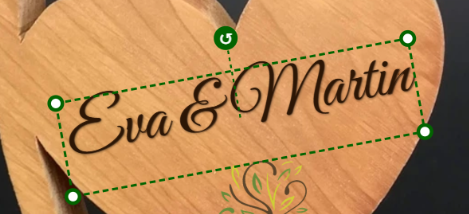
Move – click an element and drag it with your mouse (or your finger on a mobile) to where it belongs. The selected element has a dashed green frame around it.
Resize – there are four round handles at the corners of the selected element. Grab one and drag – the element grows or shrinks while keeping its aspect ratio. For text, the font size scales automatically too.
Rotate – above the centre of the element you will find a round handle with an arrow ↺. Grab it and turn it to set any angle. This is handy, for example, for diagonal text, placing a name along an arc or giving a logo a decorative tilt.
Layers – the "Layers" panel shows all added elements. Click to select them, use the ↑ Up and ↓ Down buttons to change their order (whatever is at the top of the list lies on top of the canvas) and the cross to delete them.
Step 6 – Background colour and canvas format
At the bottom of the side panel you will find Settings with a choice of background colour. You can choose light green (the default, a nod to the natural tone of wood), dark, white, a natural wood shade, grey, or set your own colour. The background is mainly for presenting the design – the engraving itself is always burnt into the real wood of the product.
Above the canvas there are three format buttons: □ Square, ⬜ Landscape and ▭ Portrait. Choose the one that best matches the shape of the product you are designing for. For a landscape board, landscape format makes sense; for an A5 notebook, portrait is usually better.
Step 7 – Export and order
Once you are happy with your design, click "Continue to export →" at the bottom. The designer will show you a final preview of the engraving without the helper frames – exactly what you will see on the finished product.
To order, click the main green button "🛒 Order product". The following will happen:
The designer automatically downloads your design as a PNG image named gravir-XXXX-amadea.png (XXXX is the product ID). At the same time, the page of the specific wooden product opens in a new window in the shop. There you add the product to your basket as usual and attach the downloaded PNG with your design in the order note or as an attachment. If you uploaded your own logo, please also attach the original source file in the highest quality – it makes preparing production easier for us.
If you just want to save the design to look at later or send it to someone (for example to your partner for approval), use the "⬇️ Download PNG only" or "⬇️ Download JPG only" buttons.
⚠️ The most common mistakes to avoid: Do not use text that is too small – below 18 px, text engraved on wood becomes illegible, especially with serif fonts. Avoid images with fine grey gradients and shadows – the laser works in a binary way (burnt / not burnt), so gradients come out patchy. Leave enough margin from the edges of the product (at least 1–2 cm), otherwise the text may end up "cut off" after engraving. And never forget to attach the downloaded PNG to your order in the basket – without it we do not know exactly what to engrave.
Which AMADEA wooden products are suitable for engraving
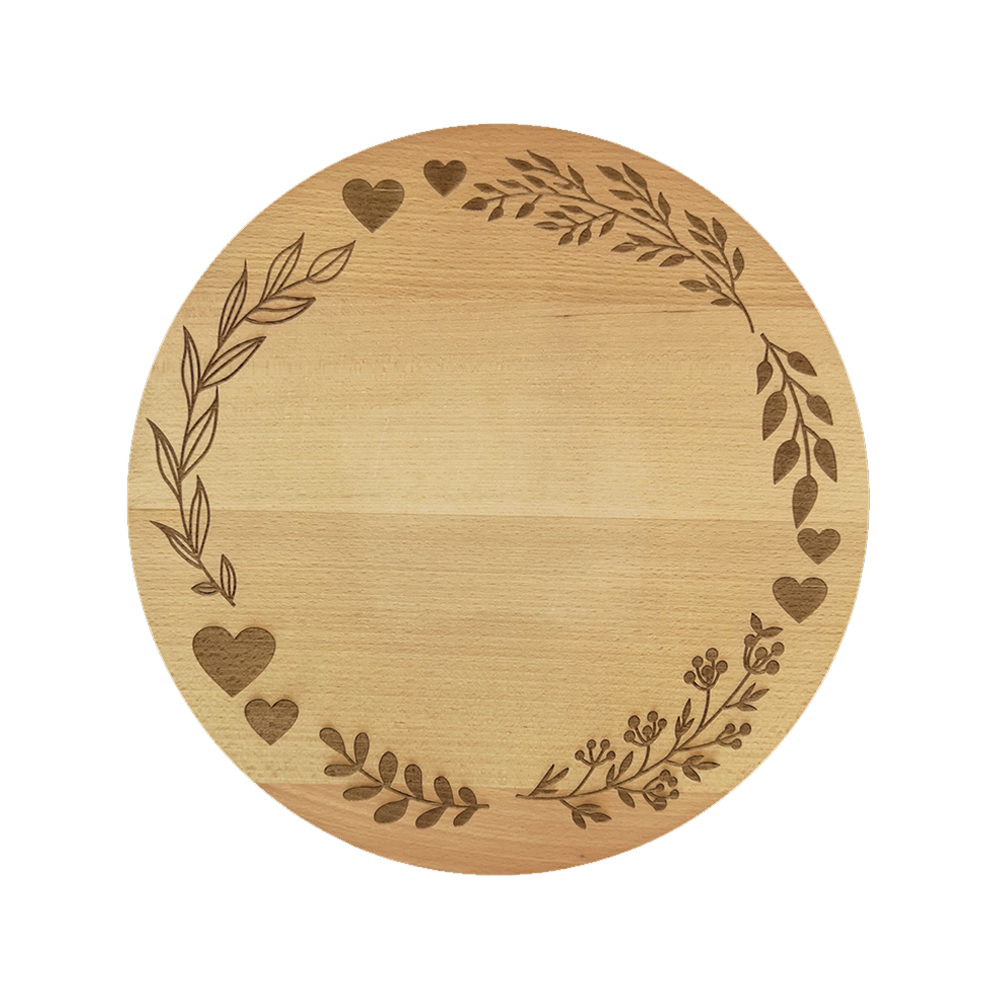
The designer includes dozens of products, but not all of them suit every occasion. Here is a quick guide to which category fits which gift:
If you are looking for a specific gift for a specific person, also take a look at our dedicated sections For Mum, For Dad, For Grandma or For Grandad. Most products in these categories can also be personalised with your own engraving.
Why have your engraving made by AMADEA
AMADEA is a Czech manufacturer based in the Czech Republic – all our products are made in our own workshop from solid wood of local tree species. We do not sell resold Asian goods with digital printing. When you order an engraved wooden board from us, you know exactly where the wood comes from, who worked it and that the laser engraving is not just a transfer but a genuinely burnt-in motif that will last for generations.
We also work with a whole range of woods – from beech and oak to fruit woods and specialities such as glued panels made from three types of wood. Thanks to the natural grain of the growth rings, every piece is a little different, which only enhances the feeling of uniqueness in personalised gifts.
🌳 Start your own design today! The AMADEA online designer is free, there is nothing to install, and in a few minutes you will have a finished engraving design for a handmade wooden product from Czech forests.
Launch the engraving designerFrequently asked questions (FAQ)
Is designing a custom engraving at AMADEA free?
Yes. Using the online designer, previewing the engraving and downloading the design as PNG or JPG are completely free. You only pay for the engraved wooden product itself, which you order in the shop.
How long does it take to make a product with a custom engraving?
We make personalised products to order in our Czech workshop. You will always find an approximate production time on the specific product page, or we will confirm it after receiving your order and design. As a rule, allow a few extra working days compared with standard products without engraving.
Can I upload my own logo or image?
Yes. The designer accepts files in JPG, PNG, SVG and WebP formats. For the best result we recommend a logo in the highest possible resolution, ideally with a transparent background (PNG or SVG). Vector SVG is best, as it stays sharp at any size.
What does the "Burnt engraving" style in the designer mean?
The burnt engraving imitates the classic laser burning of a motif into solid wood – a dark brown colour with a subtle shadow and slightly scorched edges. It looks natural in the preview and faithfully shows how the real engraving will look on the finished wooden product.
What happens when I click the "Order product" button?
The designer automatically downloads your design as a PNG image to your Downloads folder and opens the page of the specific wooden product in the AMADEA shop in a new window. There you add the product to your basket and attach the downloaded PNG with the engraving design to your order – ideally in the note field or via the form in the basket.
Which AMADEA products can I add a custom engraving to?
We offer engraving on dozens of products – above all wooden boards, notebooks, gift boxes, wall clocks, money boxes, bowls and decorations such as a four-leaf clover or a heart. You will find the current list of all products that can be personalised directly in the designer.
🎁 Looking for a gift idea with a personal touch? Browse the Gifts with Your Design category at AMADEA – you will find dozens of wooden products that can be personalised with your own engraving.
Browse personalised giftsAuthor: Martin Portych – specialist in wooden products, gift advice and shop content
Editorial policy: Our content is based on the day-to-day practice of the AMADEA shop, the real needs of our customers and a commitment to clear, useful and trustworthy information.